Recently added item(s)
Subtotal: LKR 185,630.00





















Do you have old VHS tapes, camcorder recordings, or legacy video camera footage gathering dust in a drawer? Or perhaps you want to record video from an external source directly onto your PC or laptop? The MyGica Capit USB Video Capture Card is one of the most reliable and budget-friendly solutions available in Sri Lanka!
In this guide, we will walk you through everything you need to know about setting up and using your MyGica Capit USB capture card on Windows.
The MyGica Capit (often branded as Capit or Capit Video Capture) is a plug-and-play USB 2.0 device that bridges analog video sources (such as VCRs, DVD players, set-top boxes, or vintage gaming consoles) with your modern digital computer.
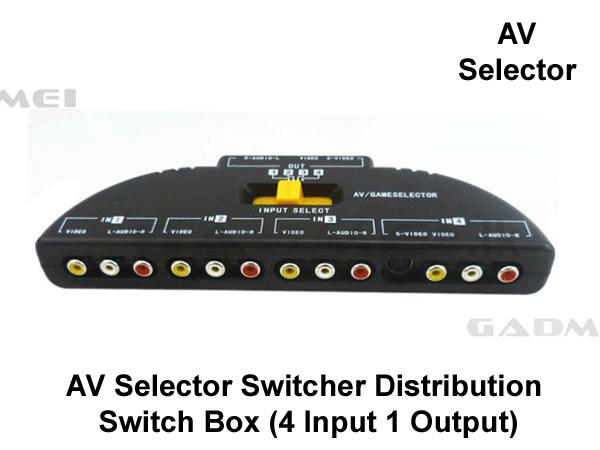
It comes equipped with:
Yellow RCA Connector: Composite Video Input
Red & White RCA Connectors: Stereo Audio Inputs (Right & Left)
S-Video Connector: High-quality analog video input
USB 2.0 Port: Connects directly to your computer
MyGica Capit USB Device
Video Source (VCR, DVD Player, Camcorder, or Gaming Console)
RCA Cables or S-Video Cable (Male-to-Male)
Windows PC/Laptop
Video Capture Software (e.g., ArcSoft ShowBiz, OBS Studio, or PotPlayer)
Insert the MyGica Capit USB device into a USB 2.0 or USB 3.0 port on your computer.
If your device came with a driver CD, run the setup program.
If your PC doesn't have a CD drive, Windows 10/11 will often automatically detect and install generic OEM Cap / USB video device drivers.
To verify installation, open Device Manager on Windows and look under Sound, video, and game controllers. You should see the OEM cap or USB video device.
Connect one end of the RCA cable (Yellow = Video, Red/White = Audio) to the OUT ports of your VCR, camcorder, or DVD player.
Connect the other end of the RCA cables to the corresponding colored female jacks on the MyGica Capit USB Dongle.
(Optional) If your device supports S-Video, plug an S-Video cable into the S-Video port for clearer video quality.
While MyGica comes with bundled software like ArcSoft ShowBiz, OBS Studio (Free & Open Source) is highly recommended for modern Windows PCs.
Download and open OBS Studio.
Under the Sources panel at the bottom, click the + icon and select Video Capture Device.
Name it MyGica Video and click OK.
In the Device drop-down menu, select OEMCap or USB Video Device.
Change the video format if needed (usually PAL or NTSC depending on your source footage).
Under Audio settings in OBS, select Audio Input Capture and choose the MyGica USB audio device.
Press Play on your VCR or camcorder.
You should now see the video preview in your software window.
Click Start Recording in OBS Studio (or your preferred software).
When finished, press Stop Recording. Your video will be saved as an MP4 or AVI file directly to your PC!
Clean Your VHS Tapes: Dusty tapes can clog playback heads and cause video flickering.
Aspect Ratio: Old VHS tapes use a 4:3 aspect ratio. Keep this setting in your software to avoid stretched or distorted video.
Audio Sync Issues: If video and audio are out of sync, adjust the audio delay settings in OBS Studio settings.
Looking to preserve your cherished family memories before magnetic tapes degrade?
Grab the genuine MyGica Capit USB Video Capture Card from Gadmei.lk today with islandwide delivery across Sri Lanka!